

Elementor MCP Bridge is a free WordPress plugin that turns any WordPress + Elementor site into a native MCP (Model Context Protocol) server, so Claude AI can build real, fully editable Elementor pages, posts, and WooCommerce products for you no copypasting HTML, no fragile shortcodes. Security is built in: the connector is only active while your WordPress admin is logged in — the moment you log out, the connection is automatically disabled, so nothing can touch your site while you’re away.
It’s also a serious time-saver for store owners. Give Claude nothing but a product name, and it researches the product from the web and builds the complete WooCommerce listing for you: SEO title, short description, full long description, the right category and brand, and product images all added automatically and all editable in Elementor afterward. Below you’ll find what it does, how to install it, and how to connect it to Claude Desktop in under two minutes.
Why Choose Elementor MCP Bridge? All the Benefits
100% Free — No Subscription, No Registration
Unlike most AI-WordPress plugins, there's no payment, no account registration, no subscription, and no license key. Download it, install it, use it. That's the whole deal — forever.
Easy to Install — 2 Minutes
Standard WordPress install: upload the zip, click Activate, copy one URL. No build tools, no external services, no configuration files. Working in about two minutes.
Tested & Ready for Installation
The plugin ships tested and works out of the box with the free version of Elementor and with WooCommerce. Activate it and it's immediately ready for Claude to connect.
No Code Needed
You describe what you want in plain language — Claude does the building. No PHP, no HTML, no shortcodes, no page-builder wrestling. Zero code required from start to finish.
Massive Time Savings
Claude creates complete pages, blog posts, and WooCommerce products in minutes — work that normally takes hours of manual drag-and-drop. Batch out city pages, product listings, or landing pages while you focus on strategy.
Fully Editable in Elementor
Everything Claude builds is made of real, native Elementor widgets — not locked HTML blobs. Open any page in the Elementor editor afterward and restyle, rearrange, or rewrite it visually, exactly like a page you built yourself.
What Elementor MCP Bridge Actually Does
Elementor MCP Bridge turns your site into a native MCP (Model Context Protocol) server. That means Claude — or any other MCP-compatible AI client — can talk directly to your WordPress install and create real, fully editable Elementor content: pages, posts, WooCommerce products, categories, and media. No copy-pasting HTML, no fragile shortcode hacks. The AI builds actual Elementor widgets (heading, image, button, tabs, accordion, and more) that you can open in the Elementor editor afterward and tweak like any normal page.
Under the hood it exposes a single REST endpoint at /wp-json/emb/v1/mcp that speaks the MCP protocol, plus a handful of supporting REST routes. It ships as one plugin file with a set of includes — no external dependencies, no build step.
How to Install the Elementor MCP Bridge Plugin
Getting it running takes about two minutes:
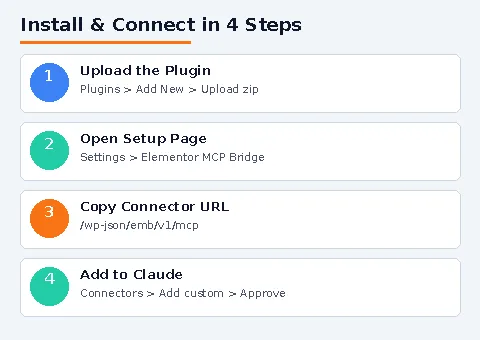
- Upload the plugin. In your WordPress dashboard go to Plugins → Add New → Upload Plugin, choose the
elementor-mcp-bridge.zipfile, and click Install Now. - Activate it. The plugin automatically creates a dedicated, low-privilege
MCP Content Editorrole and anemb_use_mcpcapability — it deliberately does not rely on your admin account having blanket access. - Open the setup page. Go to Settings → Elementor MCP Bridge. This is a read-only status page: it checks live whether Elementor is active, whether WooCommerce is active (product tools only appear if it is), and whether your site is running over HTTPS, which is required for the connector to work at all.
- Copy the connector URL. The setup page shows your endpoint —
https://yoursite.com/wp-json/emb/v1/mcp— with a one-click copy button.
Connecting Claude Desktop
There are two ways to authenticate, and the plugin supports both out of the box:
- OAuth one-click (recommended). In Claude Desktop go to Settings → Connectors → Add custom connector and paste in the endpoint URL. Claude opens your site’s login page, you sign in (or you’re already logged in), and a one-click Approve screen finishes the connection. No Application Password required for this path — whichever WordPress account you approve with is the account the connector acts as, so it’s worth doing this as the dedicated MCP Content Editor role rather than a full admin account.
- Application Passwords. If you’re wiring up the included local Node MCP server, or a client that doesn’t support OAuth, generate a fixed username/password credential from Profile → Application Passwords instead.
What You Can Build With It
Once connected, Claude has access to more than two dozen tools, including:
create_elementor_page/update_elementor_page/get_elementor_page— full page and post management, built as real section → column → widget trees the way Elementor itself expects.create_woocommerce_product/update_woocommerce_product/list_woocommerce_products— simple WooCommerce products with structured price, SKU, and stock fields plus an Elementor-built description. (Variable products are intentionally out of scope.)create_category/update_category/list_categories— works for post categories, WooCommerce product categories, or a store’s brand taxonomy.upload_image/sideload_image/list_media— every image is converted to WebP automatically on the way into your media library.list_allowed_widgets— introspection endpoint so Claude always knows exactly which widget types it’s allowed to use.
How the Plugin Keeps Things Safe
This is the part most AI-integration plugins skip, and it’s worth calling out because it’s genuinely well thought through:
- A whitelist of 21 widget types. Only heading, text-editor, image, button, spacer, divider, icon, icon-box, image-box, video, google_maps, tabs, accordion, toggle, alert, counter, progress, social-icons, star-rating, image-carousel, and testimonial widgets are accepted. Raw HTML, shortcode, and Form widgets are explicitly and permanently blocked — they’re the easiest stored-XSS and abuse vectors for a bridge like this.
- Every setting is sanitized before it touches the database: URLs go through
esc_url_raw, colors throughsanitize_hex_color, rich-text fields throughwp_kses_post, everything else throughsanitize_text_field. Nesting depth and total widget count per request are both capped. - A dedicated low-privilege role and capability instead of reusing
edit_posts— the plugin adds and removes exactly the capabilities it needs, computed fresh on every load. - Delete capability is off by default. A leaked Application Password can create and edit content but can’t delete anything unless a site owner explicitly opts in with
add_filter('emb_grant_delete_capability', '__return_true')in their own code. - Rate limiting caps requests at 30 per 60-second window, and payload size is capped at 8MB to prevent abuse via oversized image uploads.
Get the Free Download Link
Want the Elementor MCP Bridge plugin file? It’s completely free — just send us your name, email, and phone number and we’ll reply with the download link, or reach us directly on WhatsApp.
Should You Install It?
If you’re already using Claude to help plan or draft content for a WordPress + Elementor site, this closes the loop: instead of pasting HTML into a page builder and manually rebuilding the layout, Claude can create the actual widget tree directly. It’s completely free — no subscription, no registration, no license key, unlike most AI page-building tools — and the security model (whitelisted widgets, sanitized settings, a dedicated low-privilege role, delete-off-by-default) is far more careful than most “AI meets WordPress” integrations bother to be.
The tradeoffs are real, though: it’s currently simple-products-only for WooCommerce, and letting any AI client write directly to your site is inherently more risk than a read-only integration, even with the safeguards in place. If that tradeoff makes sense for your workflow, it’s worth trying.